



Samsung Galaxy Connect Now Works With Even More Windows PCs
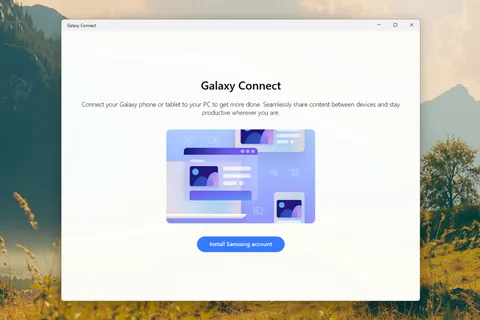
David Nield David Nield Freelance Writer Experience David Nield is a technology journalist from Manchester in the U.K. who has been writing about gadgets and apps for more than 20 years. He has a bachelor's degree in English Literature from Durham University, where he also spent a term as editor of the award-winning student newspaper Palatinate. His journalism career started in print media, where he contributed to and edited several technology magazines and bookazines sold in the U.K. and internationally. More recently, he has worked as a freelancer for some of the biggest technology publications on the web, covering everything from on-the-ground reporting about product launches, to detailed explainers and how-to guides on apps, gadgets, and platforms. His expertise covers broad areas of consumer tech, including smartphones, laptops, wearables, and AI. Areas of Expertise Read Full Bio April 24, 2026 Add as a preferred source on Google Add as a preferred source on Google Credit: Lifehacker Table of Contents iPhones and Macs work together seamlessly in all kinds of ways, whether you want to control your Apple phone from your Mac or use it as a webcam . Apple calls this suite of features Continuity, and it extends to iPads and Apple Watches too—so if you stay inside the Apple ecosystem you're guaranteed to get devices that play nicely together. Features like those offered by Apple Continuity aren't quite as easy for Google, Samsung, and Microsoft to implement, but everyone who isn't Apple is busy trying to improve the cross-device experience. Pixels and Chromebooks now offer several useful integrations , as do Samsung Galaxy phones and Galaxy Book laptops. Those Samsung features, managed by the Galaxy Connect app, have just been expanded to non-Samsung Windows 11 computers, so far more people can now take advantage of them. As long as you've got a PC running Windows 11 and fitted with an Intel or AMD chip, this is now available to you (ARM-based PCs aren't yet supported). The expansion was quietly announced in the release notes of version 2.1.6.0 of the Galaxy Connect app available on the Microsoft Store. Once you've got the app installed, here's what you can do with it. Getting started with Galaxy Connect After downloading and running Galaxy Connect, you'll see a prompt to sign in with a Samsung account. You're going to need one of these to use Galaxy Connect, and presumably you've already got one you use with your Galaxy phone. Once that's done, you'll get to the front page of Galaxy Connect, which has four main sections. The first is Continue on other devices . This primarily means copy and paste, so if you copy something on your PC you can then switch to your Galaxy phone and then paste it there (or vice versa). Like all Galaxy Connect features, both devices need to have Bluetooth turned on, and to be on the same wifi network. The Galaxy Connect app. Credit: Lifehacker Enabling this feature via the toggle switch also means wifi network information gets synced. If you've previously connected to a wifi network with your Windows 11 laptop, for example, then when your Samsung phone comes across it, it'll already know the password—you just need to tap to connect. Camera continuity is another included feature: Samsung says it lets you "take pictures or scan documents on your phone or tablet, then continue working on them in apps like Samsung Notes on your computer." However, it's not clear how this works, and I couldn't figure it out—something for Samsung to work on, perhaps. Enabling cross-device communication. Credit: Lifehacker The next item in the Galaxy Connect menu is easier to understand, and called Storage Share . Go into this section, turn on the toggle switch, and you'll get an extra Storage Share entry in File Explorer in Windows 11. (If your phone doesn't appear, check that Connected devices > Storage Share is enabled in Settings on your Galaxy phone). This gives you easy access to everything on your phone, and means you can transfer files between both devices without messing around with syncing apps or cables. This is exactly how straightforward it should be to swap files between computers and phones, in fact—it took us a few years, but we got there in the end. How "multi control" and "second screen" work in Galaxy Connect The other two sections in Galaxy Connect are a little more complex, and require extra downloads. They're not just on/off toggle switches, and have some additional configuration required. As soon as you select them, you'll be directed to the relevant download from the Microsoft Store. What do you think so far? First is Multi control , which essentially lets you operate your phone from your laptop or desktop: You get to arrange your phone and PC, as you would a secondary display, and then you can send your Windows 11 cursor to and from the Galaxy phone just by moving it off screen in the appropriate direction. When the cursor leaves your computer screen and arrives on your phone screen, you can use your mouse and keyboard to control the Galaxy handset. It makes typing and selecting much easier, and if you need to bring any text, links, or images back to your PC you can simply drag them across the edge of the screen back to the desktop interface. The Multi control window. Credit: Lifehacker The final Galaxy Connect feature is Second screen , and as you might be able to guess from the name, this lets you use a Galaxy device as a secondary display for your computer—though it only works with tablets, not smartphones, so I haven't tested it out directly. Again, you have the ability to position your two screens in relation to each other. You get all the benefits that usually come with having a second screen, like more room to put apps and windows away from your main desktop until you need them. It's also handy for having something on in the background, like a video or a social media feed, without it taking up room on your main display. The second screen requires an extra download. Credit: Lifehacker Microsoft Phone Link If you're familiar with Windows-and-phone synchronicity, you might be wondering where Microsoft's own Phone Link app fits in here. You can use it as well as or instead of Galaxy Connect (if you can't get the Samsung app to work for whatever reason). This duplicates some of the features you'll find in Galaxy Connect, including the quick swapping of files, and the clipboard syncing. There are extra features in Phone Link as well, such as the ability to mirror your phone's screen on the Windows desktop, and to manage notifications, texts, and calls from your computer. (saving you from constantly switching between devices). Search for Phone Link from the taskbar or Start menu to find it, then follow the instructions to connect your handset. The Download Newsletter Never miss a tech story Jake Peterson Get the latest tech news, reviews, and advice from Jake and the team. The Download Newsletter Never miss a tech story. Get the latest tech news, reviews, and advice from Jake and the team.
Source: Lifehacker